
GPT Image 2 / 2.5 Image Editing API
¶ 1. Get API Key
Open the Lingxi AI Plaza application list, access the available applications, and copy the API Key.

¶ 2. Edit Using Image URL
Original image:

curl https://api.acedata.cloud/openai/images/edits \
  -H "Authorization: Bearer your API Key" \
  -H "Content-Type: application/json" \
  -d '{
    "model": "gpt-image-2",
    "image": "https://platform2.cdn.acedata.cloud/gpt-image/d56455e2-e7f7-4bcd-b935-475b0a1e0948_0.png",
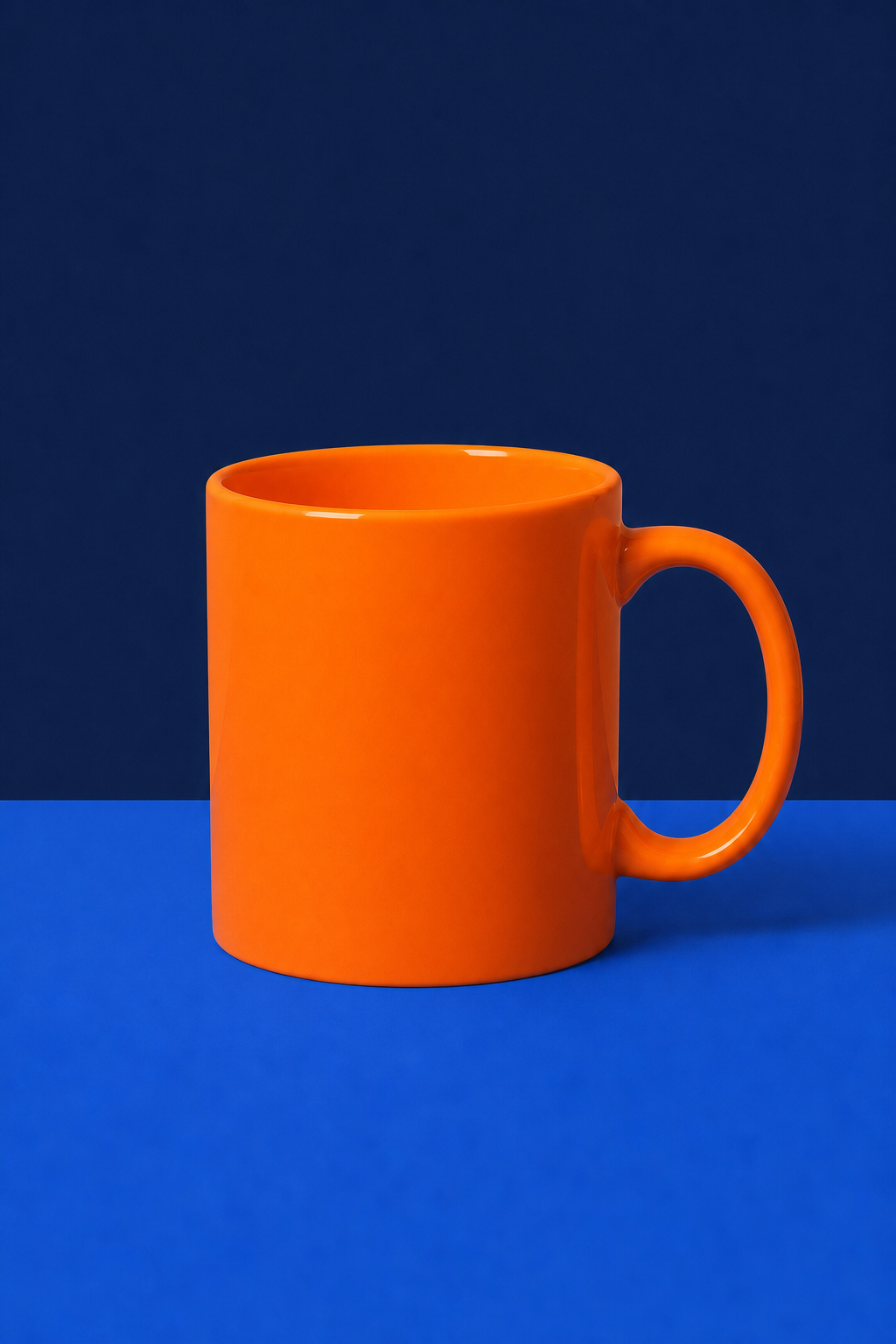
    "prompt": "Keep the mug, tabletop, camera angle, portrait layout, and soft shadow unchanged. Change only the mug color from white to vivid orange and the pale cream background to solid dark navy blue. No text and no logo.",
    "size": "1024x1536"
  }'
Successful response:
{
  "success": true,
  "task_id": "49848451-c624-4df9-9dc2-494018daaf4c",
  "trace_id": "5ac021c2-2891-4eed-bfcf-4c6668ac1be1",
  "created": 1788831893,
  "model": "gpt-image-2",
  "data": [
    {
      "url": "https://platform2.cdn.acedata.cloud/gpt-image/49848451-c624-4df9-9dc2-494018daaf4c_0.png"
    }
  ],
  "usage": {
    "input_tokens": 775,
    "output_tokens": 1372,
    "total_tokens": 2147
  }
}
This is the editing result completed through Lingxi AI Plaza on September 8, 2026, where the mug turned orange, the background became dark navy blue, while maintaining the original composition and size of 1024×1536:
¶ 3. Upload Local Image
Using multipart/form-data:
curl https://api.acedata.cloud/openai/images/edits \
  -H "Authorization: Bearer your API Key" \
  -F "model=gpt-image-2" \
  -F "image=@input.png" \
  -F "prompt=Replace the background with a bright modern studio"
You can repeatedly pass in image, and the GPT Image series supports up to 16 reference images. The image in the JSON request can be a single URL or an array of URLs; local files are uploaded using multipart.
¶ 4. Common Parameters
| Field | Description |
|---|---|
model |
gpt-image-2, gpt-image-2.5-flare (faster), gpt-image-2.5-sunburst (higher fidelity and control), gpt-image-2:official or gpt-image-2:reverse |
image |
JSON uses a single URL or an array of up to 16 URLs; multipart uses one or more image file fields |
prompt |
Editing instructions |
size |
auto or a compliant WIDTHxHEIGHT |
n |
1–10; only supports 1 when response_format=b64_json |
response_format |
url or b64_json |
callback_url |
Optional asynchronous callback address |
Size rules are consistent with the generation interface: width and height must be multiples of 16, the long side must not exceed 3840, total pixels must be between 655,360 and 8,294,400, and the aspect ratio must not exceed 3:1. If size is omitted or auto is used, the model will choose the aspect ratio based on the prompt and the first reference image.
gpt-image-2, gpt-image-2.5-flare, gpt-image-2.5-sunburst, and :reverse are billed based on the number of successful images; gpt-image-2:official is settled based on the actual tokens of text input, reference image input, and image output, with the final billing based on usage records.
¶ 5. Asynchronous Callback and Troubleshooting
For long tasks, you can add:
{
  "callback_url": "https://example.com/webhooks/images"
}
An asynchronous 200 response will be {"task_id": "..."}; the final result will be called back upon completion. A synchronous request will return created and data.
| Status | Check |
|---|---|
| 400 | Image format/quantity, parameter combinations, and size format |
| 401 | API Key and Bearer Header |
| 429 | Request frequency |
| 504 | Switch to asynchronous callback |
Error responses will include a trace_id. Provide this ID when reporting issues, and do not provide the API Key.
Complete fields and real-time enumeration are subject to the OpenAI Images Edits API page. For pure text image generation, please refer to GPT Image 2 / 2.5 Image Generation.